Release of 21.3-Inch 5 Megapixel 3D Monochrome LCD Monitor for Digital Mammography by Eizo Nanao

Eizo Nanao Corporation has announced the release of RadiForce GS521-ST, a 21.3-inch 5 megapixel monochrome LCD monitor capable of displaying 3D stereoscopic digital mammography. In developing the RadiForce GS521-ST Eizo has utilized a half-silvered mirror method for achieving high image quality required for displaying digital mammography.

Using the half-silvered mirror method, the image for the right and left eye are displayed separately on the two separate monitors that are mounted vertically and horizontally.

The half-silvered mirror is placed between the two monitors, responsible for sorting the two images and projecting them in the same direction. The user can view the resulting image in 3D with the aid of polarized glasses. The mass production of the RadiForce

Release of World’s First DCI Compliant 4K Digital Cinema Projection System by SONY

DCI specification with its great emphasis on digital movie content security prescribes “Digital Cinema Package” (DCP) as its data file format which includes encryption for digital movie content. The DCP file can be distributed via satellite or they could be delivered physically to theaters on a hard disc drive (HDD), with cryptography key to be delivered separately to theaters, where DCP file can later on decrypted with cryptographic key by cinema server, and screened by the projector. To further expand the security measure on the DCP file, the file is embedded with an electronic watermark or otherwise known as forensic mark in preventing illegal recording of projected content.

In addition to this, security measures such as an anti-tamper function are also incorporated in the projection system as an extra measure in preventing DCP files from being stolen, removing all the possibilities of pirated production.

Based on DCI specification, Sony has unveiled industry’s first DCI compliant digital cinema projection system comprising of a projector capable of projecting an ultra high resolution 4K video (8.85 million pixels, more than four times that of full HD) SRX-R320 as well as cinema server designed to store and transfer video contents to the projector.


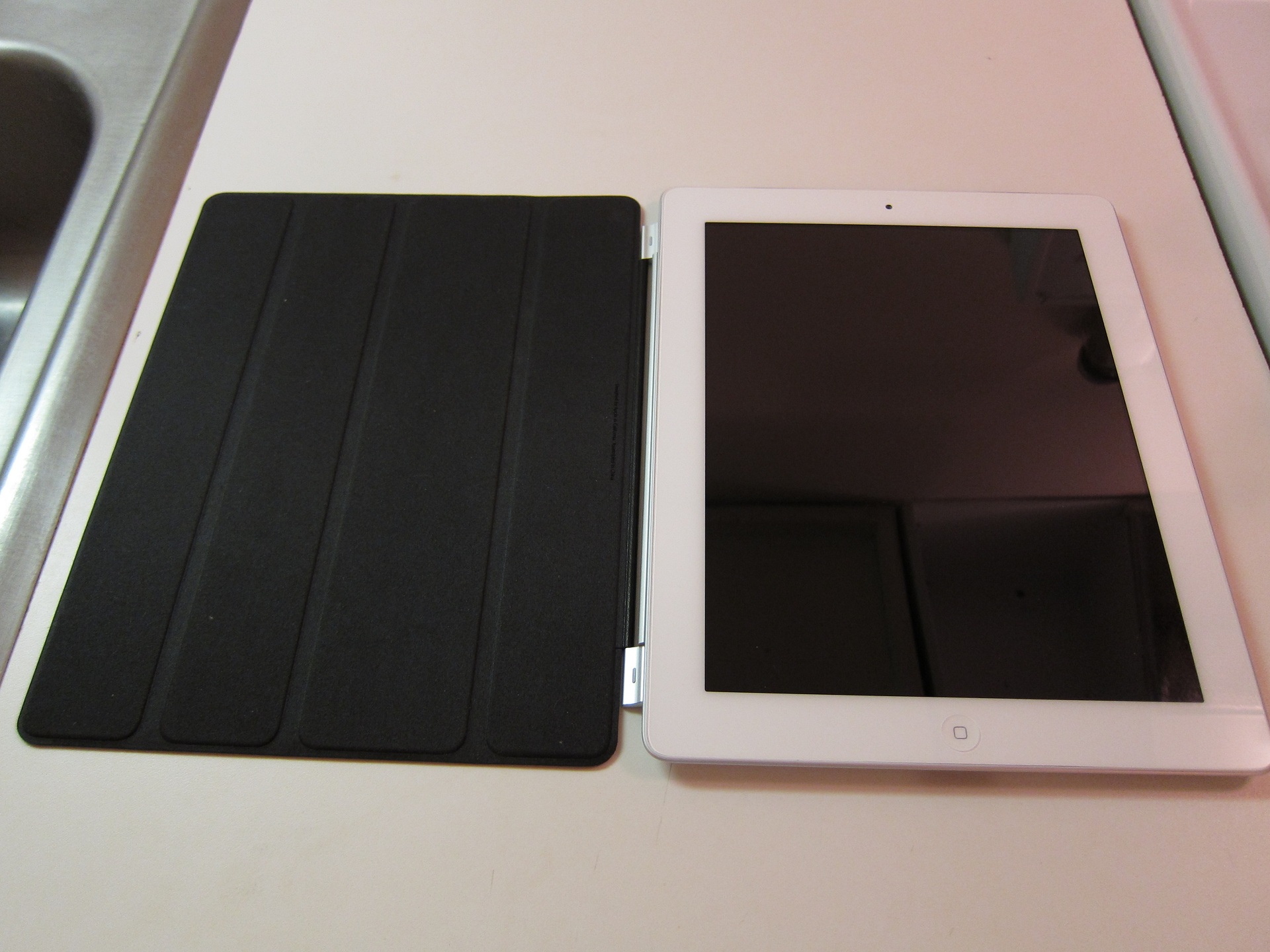
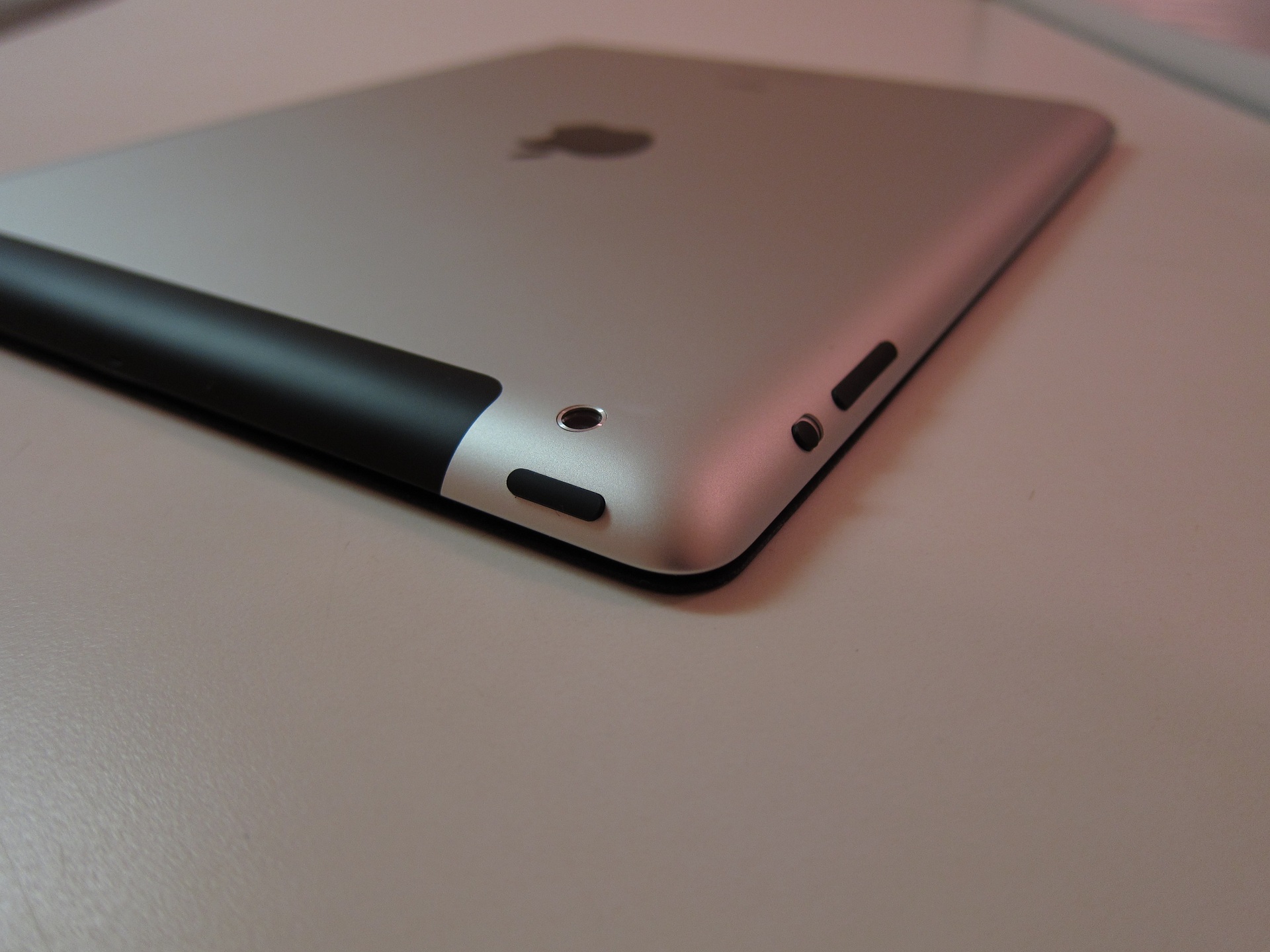
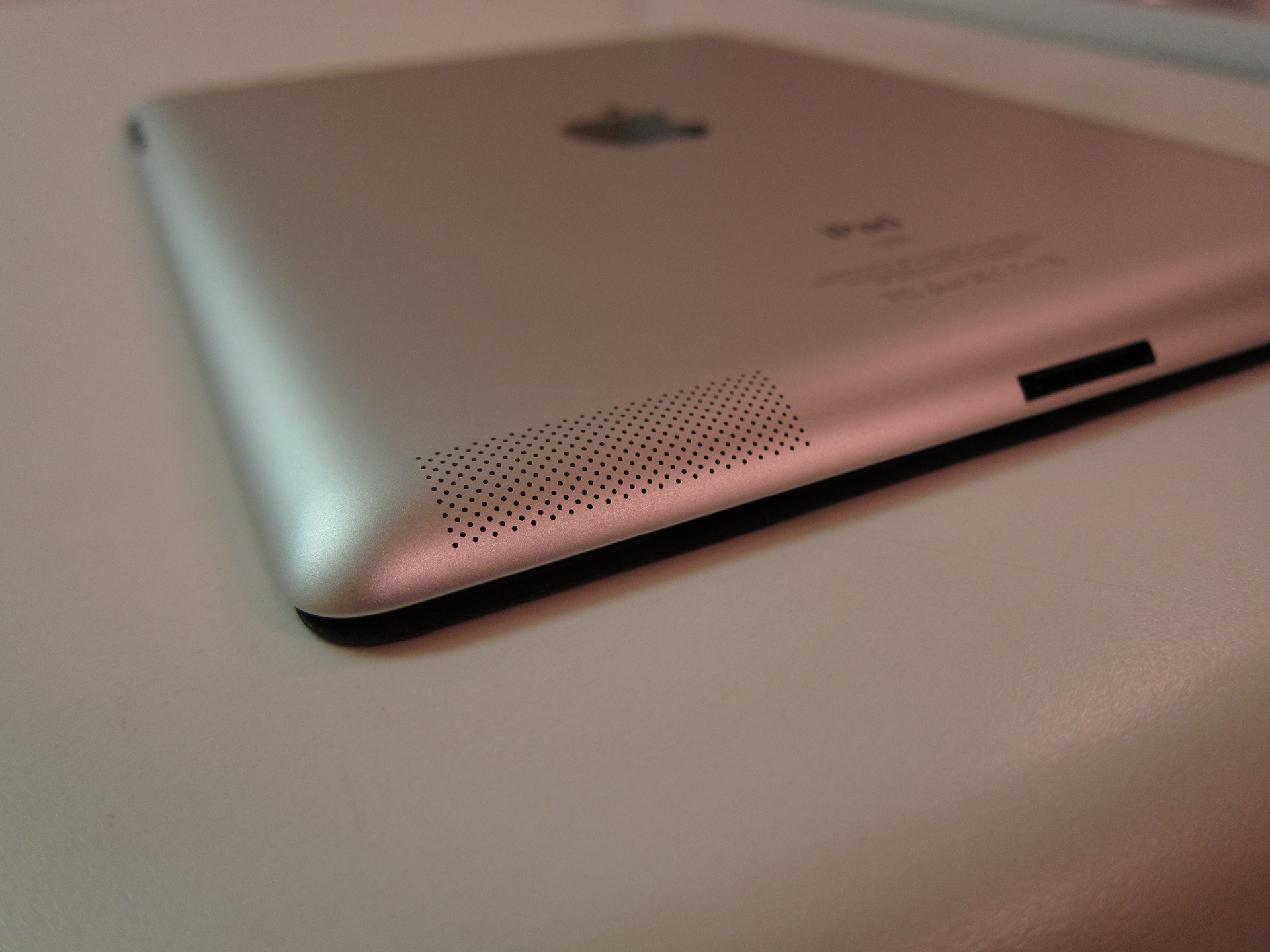
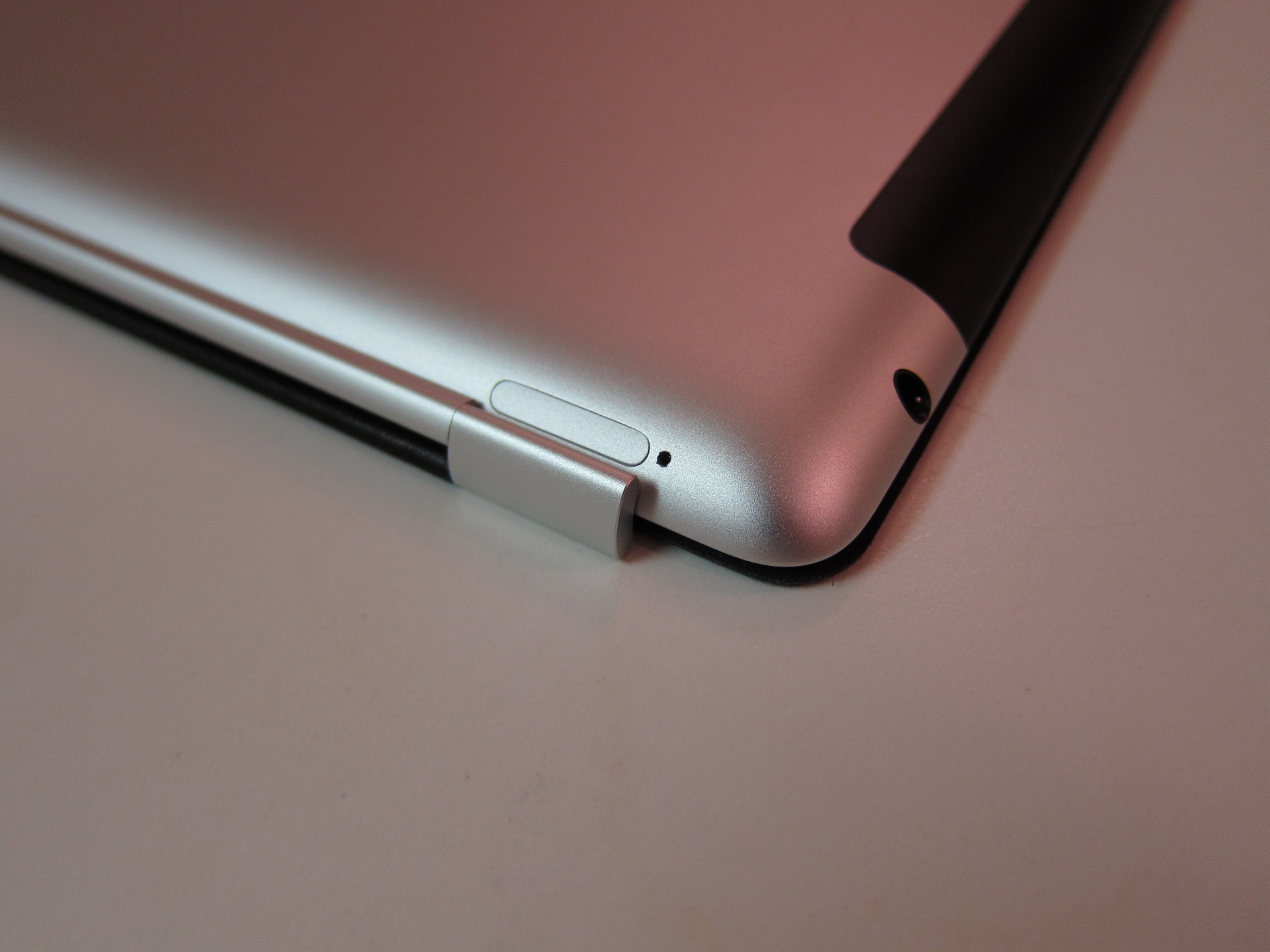
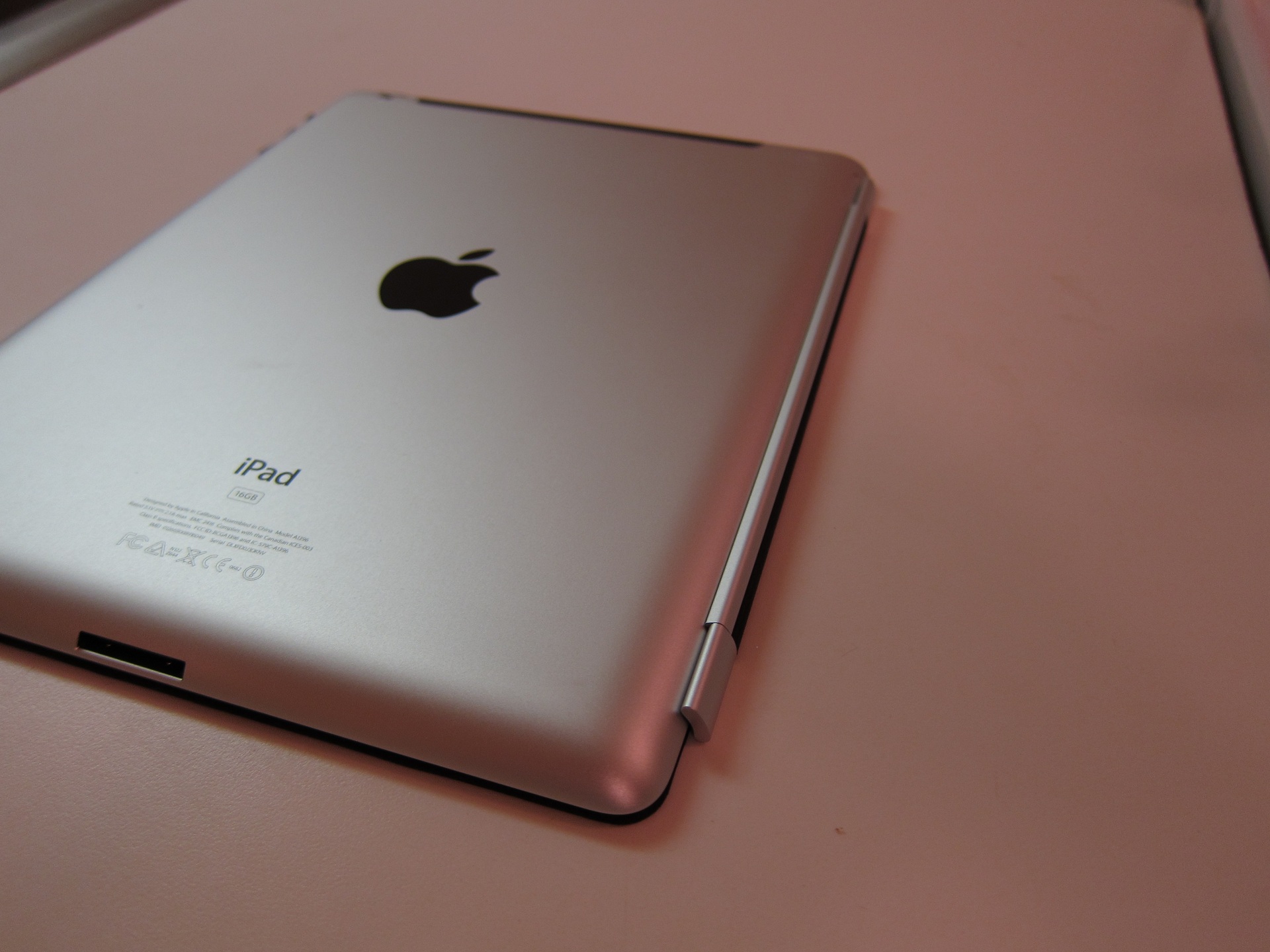
Apple iPad 2: White 16GB Unboxing

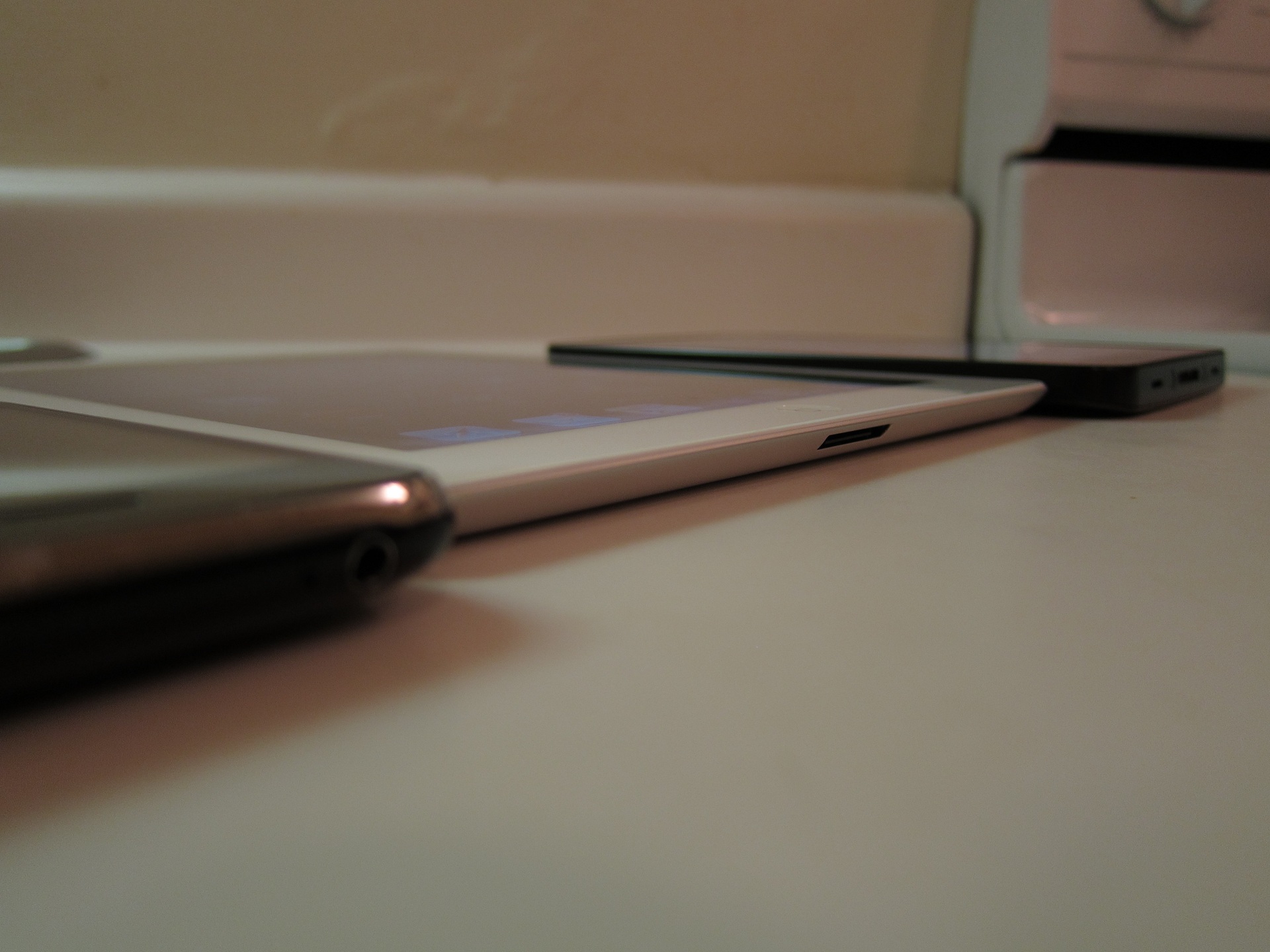
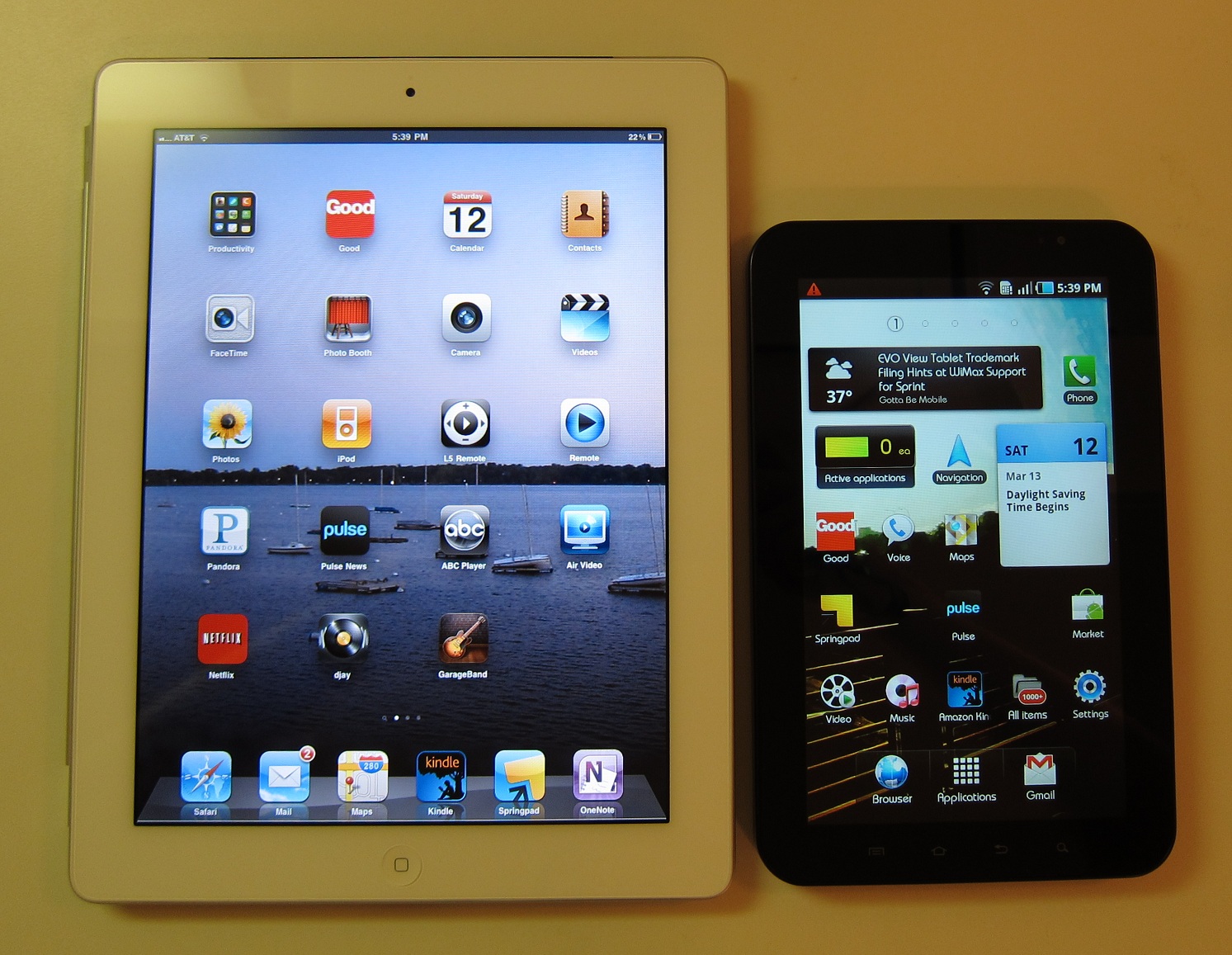
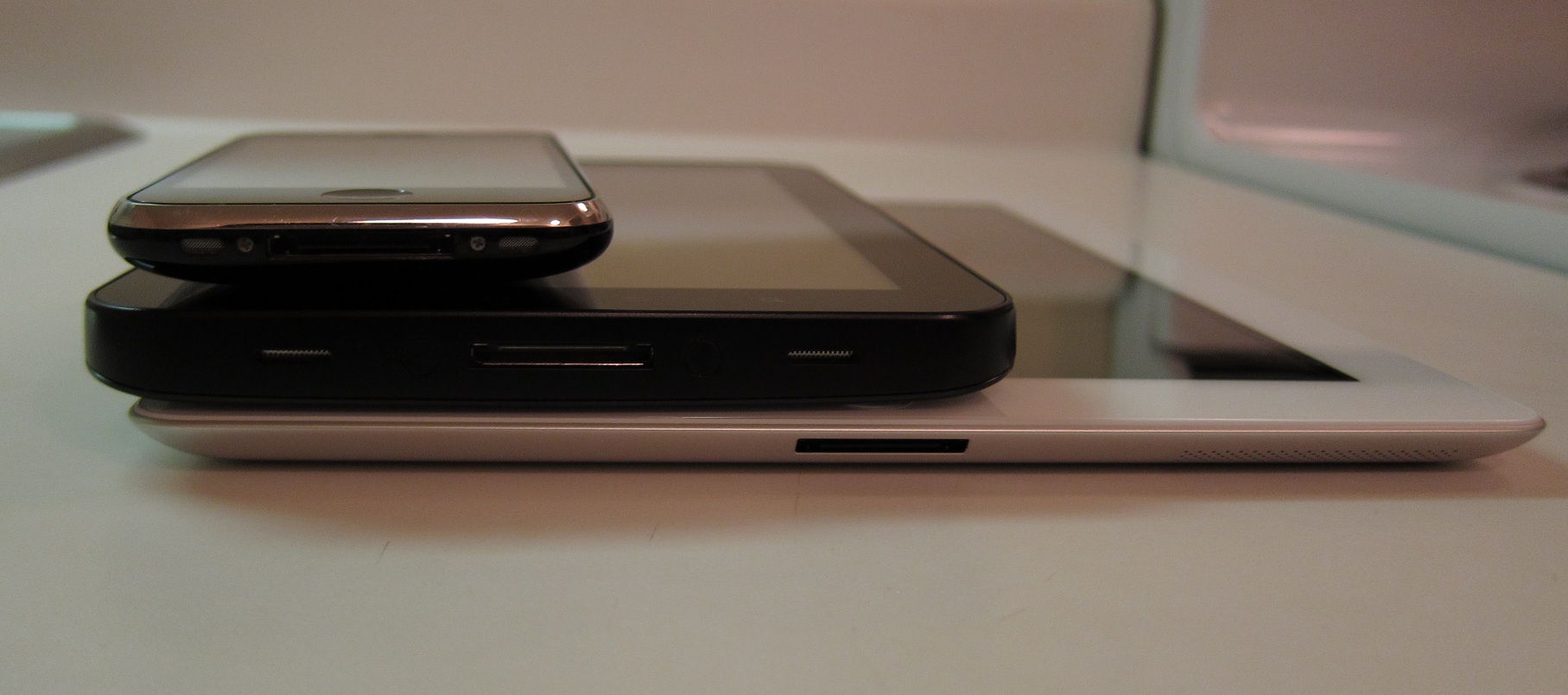
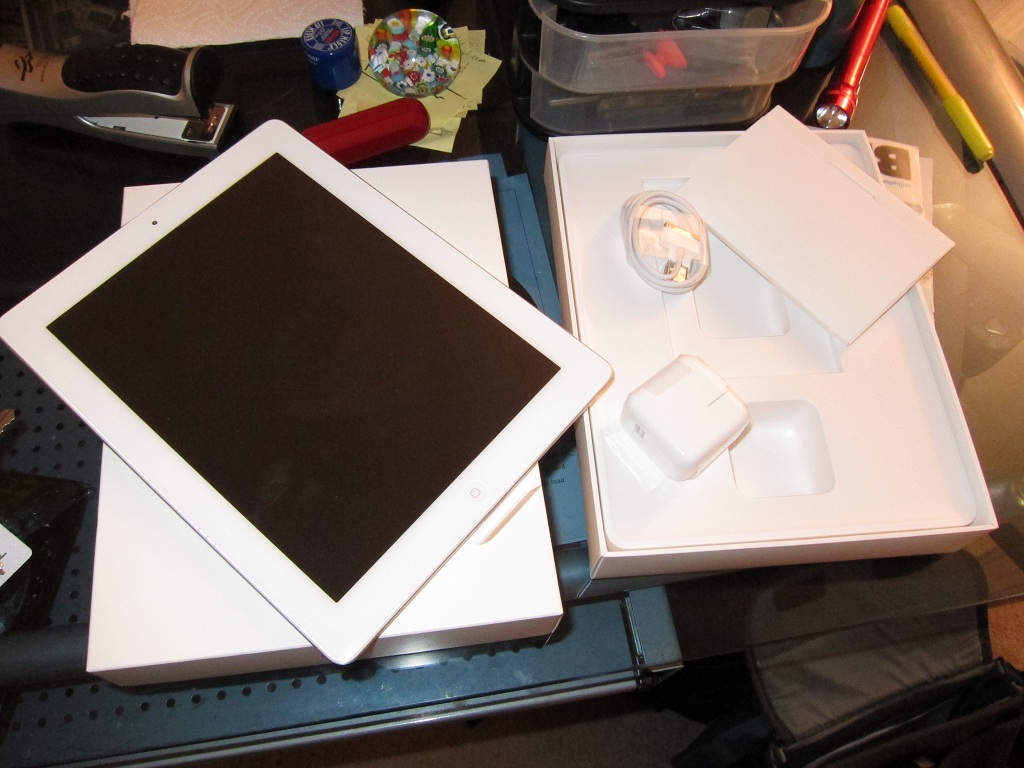
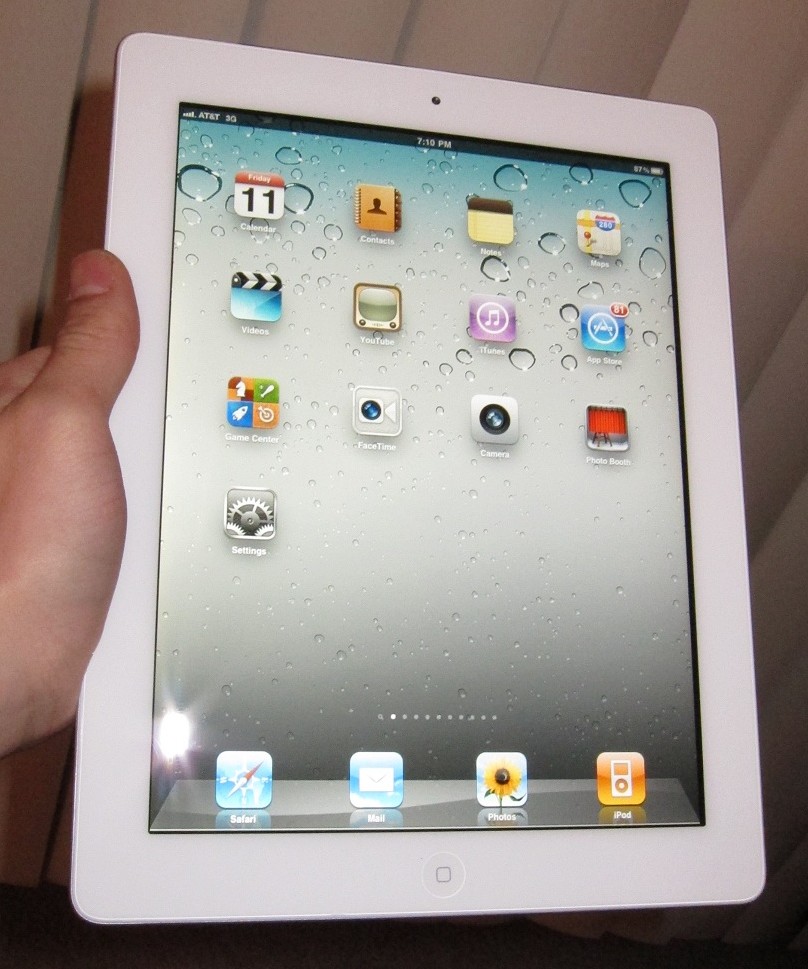
Well, as big of an iPad 2 skeptic as I have been, ultimately I could not resist. Here are some quick shots of my new white iPad 2 16GB Wifi+3G. Here I contrast it with my Galaxy Tab and iPhone 3GS. Keep reading for the all the photo goodness!

I’ve started with some closeup shots of the white iPad 2 (Wifi+3G, AT&T model) and have some comparisons with it with the Galaxy Tab and iPhone 3GS. Enjoy!


TV Remote With Apple PC

If you don’t need to have yet another remote or you’re tired of the couch eating your Apple TV’s remote, you can have your device learn your TV’s remote control and use it instead. This works both both the first and second generations of the ATV.

1. Use your Apple TV remote and turn on the Apple TV device.

2. Select Settings from the menu.

3. Select General.

4. Select Remotes.

5. Select Start.

6. Most TV remotes have options to control multiple devices, set your TV remote for an unused device (like VCR).

6. Put down the Apple TV Remote and use the TV remote.

7. A screen will appear with up, down, left, and right arrows as well as SELECT and MENU. These are the keys that need to be programmed on the TV remote.

8. As each button is highlighted on the screen, press and hold the corresponding button on the TV remote for the Apple TV to learn.

9. Use the Apple TV remote to input a name and then select the Submit button.

Your TV remote can now be used to control your Apple TV. Put your Apple TV remote away.